 SUPPORT
ℹ️
Project invitations are managed from Project Management → Members. You can invite an existing contact or add a new contact first.
Before you start
- Confirm the person’s email address or phone number.
- Make sure you have access to manage project members.
Invite a person
- Open the project, then select Members under Project Management.
- Select Send Invitation.
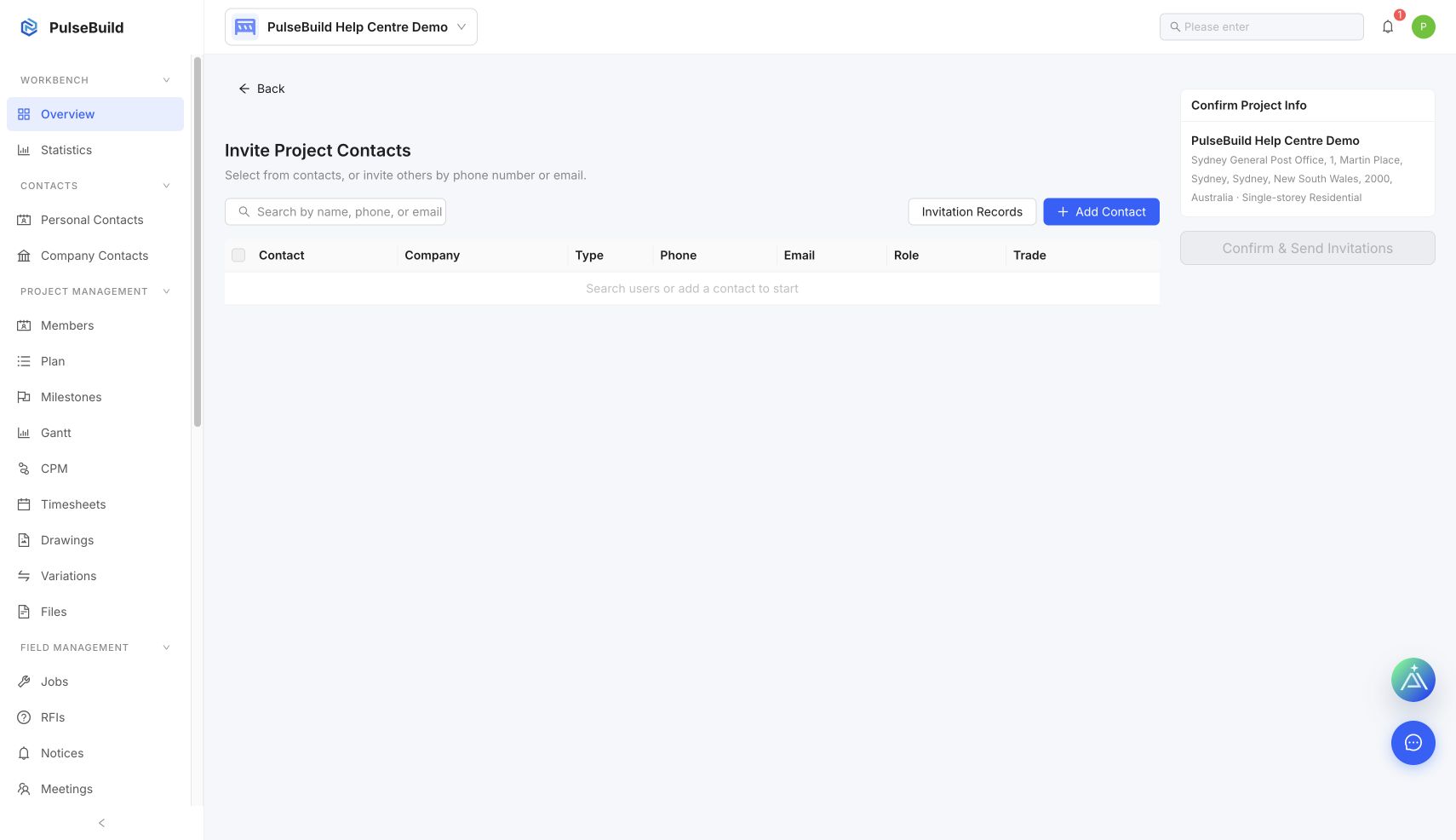
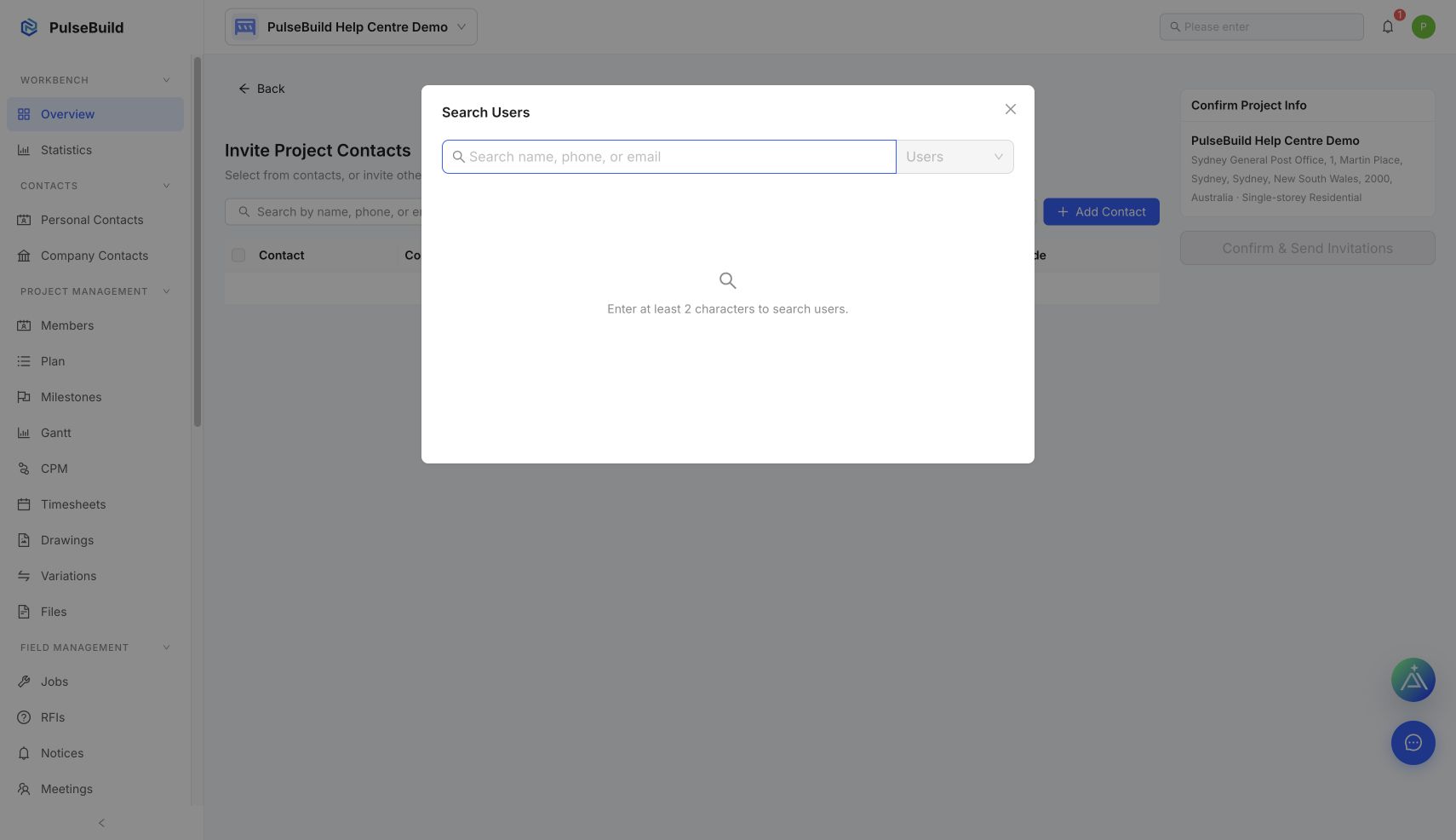
- On Invite Project Contacts, select Search by name, phone, or email to find an existing contact. If they are not yet a contact, select Add Contact.
- Select the contact.
- Review the project information in Confirm Project Info.
- Select Confirm & Send Invitations.
Track an invitation
Return to Members and select Invitation Records to review invitations that have been sent and their current status.
Troubleshooting
- I cannot find the person: search using their full name, phone number or email address. If no matching contact is available, add them as a contact before inviting them.
- Confirm & Send Invitations is unavailable: select at least one contact and complete the required invitation details.
- The invitation is still pending: check Invitation Records to confirm its status and verify the recipient’s contact details.
Next steps
Set up project locations so work can be organised by site area, level or zone.